In the first part of my Linux journey, I covered how I left Windows due to slower performance and documented my experience across different Linux distros. But since the contents of my 1 TB HDD were no longer accessible on Linux, I had to shift back to Windows, which got everything working with relative ease. However, this time I was on an unsupported machine, so my device didn’t officially support Windows 11.
Windows 11 on Unsupported Dell Vostro 15-3568: My 1.5-Month Experience
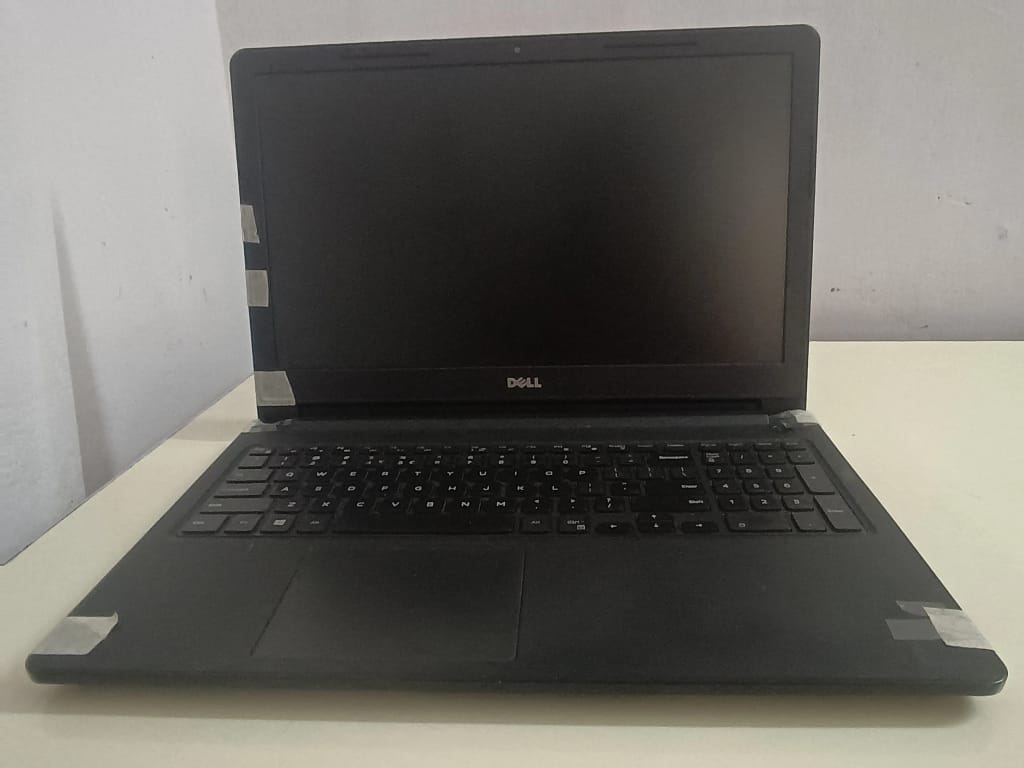
To recap, I have a Dell Vostro 15-3568 with a 7th-generation Celeron dual-core 3865U processor, 12 GB of RAM (including the 8 GB RAM stick I added later), and a 1 TB HDD.
During the first month or so, the performance of my device on Windows 11 was shockingly awesome. Sure, it wasn’t as responsive as it was on Xubuntu, and the difference was noticeable, but it was still more than enough for my needs. Additionally, things just felt really easy on Windows 11, even on unsupported hardware.
No more wondering whether a certain app or game would work; everything just did. But, the fairy tale stopped around the one and a half month’s mark, when the browser tabs kept spinning for 15 minutes after every boot. This issue did irritate me, but I continued using Windows 11 because I was really enjoying how comfortable everything felt.
A few days later, my hard drive started releasing a clicking sound, and the content disappeared here too. So, I removed that hard drive, but still stuck to Windows. However, a random Windows update changed everything. Here’s what transpired- One day, I was working on my laptop, and an update was downloading.
All of a sudden, the laptop switched off, and the display showed white and amber lights for a few times. When I turned it on, I got the message “No Boot Devices Found”. I turned it off and on again, but this time I was greeted with a GRUB screen.
The appearance made sense since the primary booth failed; it went to a leftover bootloader, which isn’t surprising given my history of distro hopping. So, with no OS, I had a decision to make:
The Road Back to Linux: Choosing Xubuntu and Mint MATE
On one hand, Windows 11 made things incredibly convenient. Most apps just worked out of the box, and updating drivers felt effortless, which is among the lesser talked about advantages of Windows over Linux. But on the Linux side of things, I would get better performance but lose out on convenience. I decided to move to Linux primarily because of the fear of these random updates breaking everything if I choose to walk the Windows path again.
Choosing the Best Linux Distro for a Celeron 3865U in 2026
Xubuntu was the last distro I worked on before I had to shift to Windows. But since the memories of my HDD content vanishing were still fresh, I wanted to look at another option. Ultimately, I chose Linux Mint MATE because, apart from the battery icon disappearing, my experience on it had been great for the most part.
Once I shifted, I felt I made the right choice given the specifications of my hardware, and I was right. Everything felt buttery smooth, and to make things better, I did find a fix for the battery icon vanishing act. Turns out, the fix was quite simple, but I just couldn’t find it previously.
Thanks to this post on the Linux Mint forum, I discovered that you just need to go to Panel, right click on it, Add New Items- Power Manager Plugin- and then click on Add.
The main battery icon still came and went as per its wish, but I found a way to stay informed of the battery level at all times.
One of my other discoveries this time around was the difference in how USB drives and phones are treated in Windows vs Linux. In Windows, let’s say you attach a USB drive or connect your phone to your laptop, you will get “click here to eject” the drive or phone. Once you click on it, you will get a “safe to remove” message and then you do that.
On Linux, you will often see your connected drives on the home screen. Right-click to find an unmount option, and then you can disconnect after clicking it. Alternatively, if you have Disks installed on your device, you can open it, select the relevant drive, click the three vertical dots option, and you’ll find the familiar eject option.
Upgrading to the Dell Latitude 7280: Searching for the Right Distro
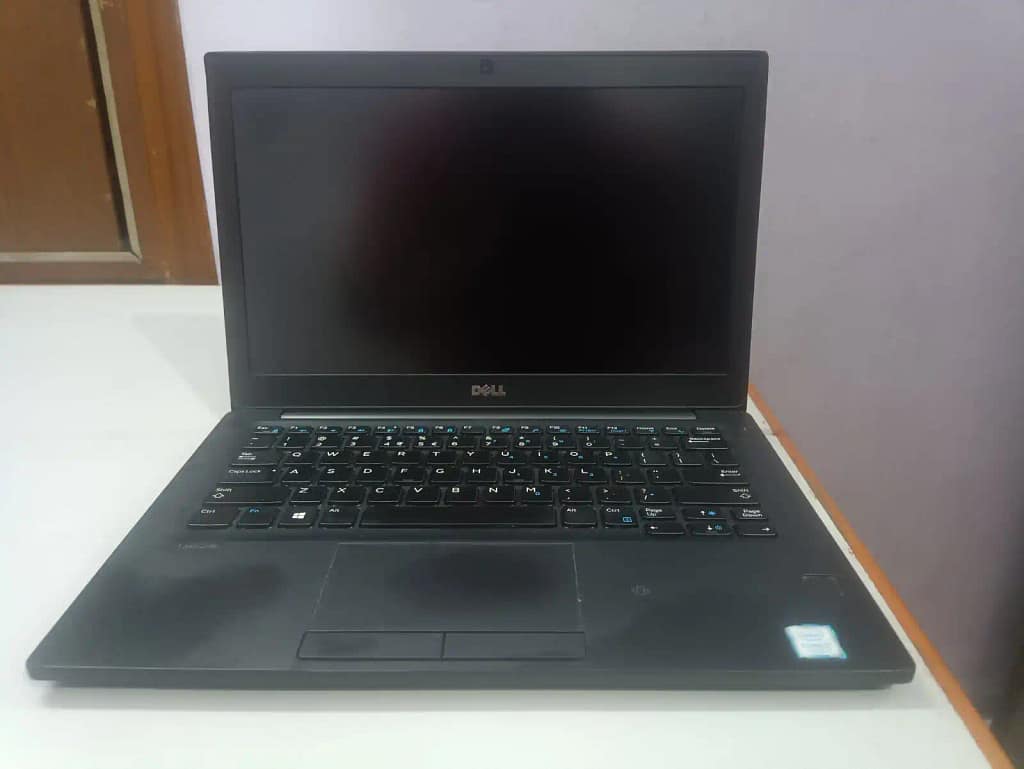
I was hunting for a second-hand device for a long time, and I finally bought one in April of 2026 from one of my friend’s family members for Rs 16000. It’s a Dell Latitude 7280, originally bought in 2018, which featured an i7-7600U 2.6 GHz up to 3.9 GHZ CPU with 8 GB RAM, 256 GB SK Hynix SSD. But, as fine as the deal was, it didn’t officially support Windows 11.
So, now I had to choose the right distro again, but thankfully, this time, my hardware could handle heavier distros. My first instinct was to choose Ubuntu because I always felt that it was the most hands-off Linux distro out there, prioritizing user convenience over raw speed.
However, I began hearing about Ubuntu using Snaps packages instead of Flatpak, which could result in a relatively slower experience. However, you can install Flatpak on it if you so desire. I am not the kind to tinker too much with the default behaviors, so I chose Linux Mint Cinnamon again.
Solving the 700 MHz CPU Hard Lock on Dell Latitude 7280
When I started using Linux Mint Cinnamon on the new second-hand laptop, I hoped for a blazing-fast experience, especially in comparison to my Celeron-powered device. Instead, everything felt painfully slow. It didn’t make sense that the i7 was struggling while the Celeron one was flying.
I searched online and found the-
Grep -E ‘^model name|^cpu MHz’ /proc/cpuinfo
command to show the speed it was running at. I found that both cores were limited to 700mhz as shown in the picture below.
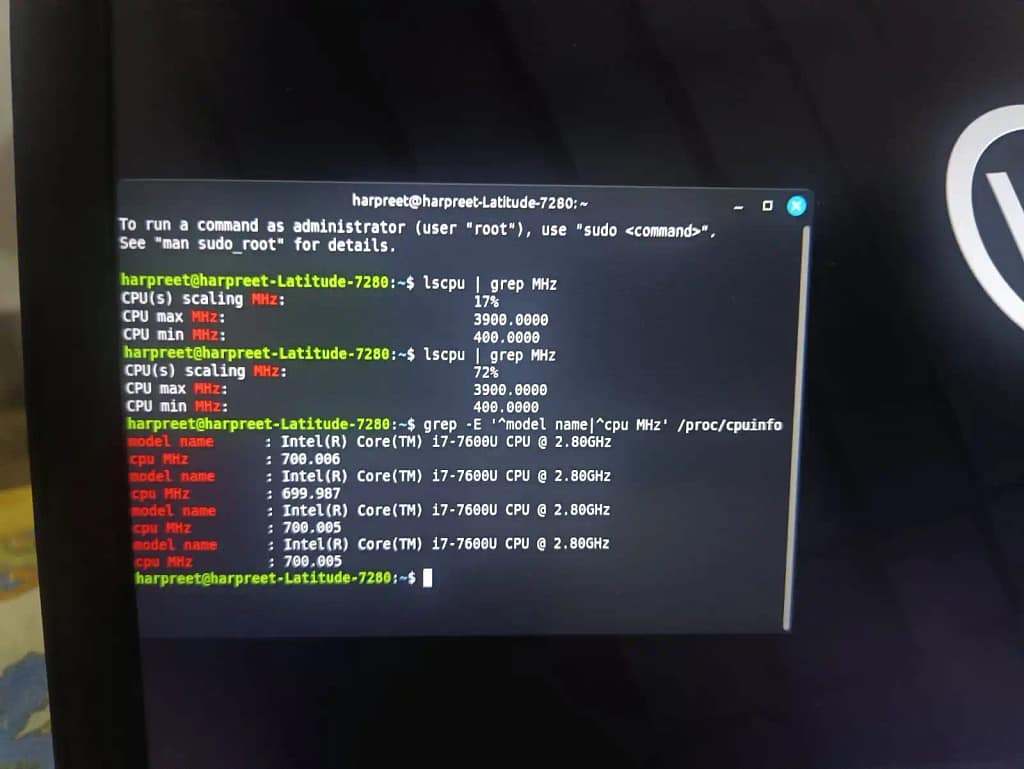
From the options available at the bottom right section of the battery icon, I discovered that the phone was operating in “Balanced” mode. I changed it to “Performance” mode to see if the cores go past the 700mhz barrier, but it couldn’t.
I searched for an explanation online and was told to check if my laptop was overheating. The next step was to check if I am using third-party chargers or adapters. I went into BIOS by clicking F12 a few times, immediately after startup.
I checked the battery health section, which said “Excellent”, and the adapter section displayed “65W”. So, this wasn’t an issue either. At this point, I should have researched more, and I would have found the solution, but I instead switched to Ubuntu and then Pop OS, hoping that it would automatically fix the issue. It didn’t.
Disheartened, I took my machine to a couple of repair shops in my town that declined to check anything because I wasn’t on Windows. On top of that, I was being asked to pay a considerable amount just to install windows in one case (Rs 500), and an even higher amount as a service charge on the other occasion (Rs 1400).
That was a really eye-opening incident for me. I realized that while Linux has never been more popular, not every market has been exposed to these environments equally. Additionally, there is a tax for running a non-Windows OS if you want their help. So, with the realization that my possible fix lies on the World Wide Web, I began hunting for it.
After some time, I felt that I had installed and tested different distros, but I hadn’t done a BIOS reset. Maybe that would do the trick. So, I went into BIOS and found a “Restore to factory defaults” option. I clicked on it, saved the settings and rebooted my system. Once I was in, I checked the CPU speed, and the output changed. Once I shifted the power settings from “Balanced” to “Performance”, the brakes were officially lifted.
Testing Pop!_OS and Returning to Linux Mint Cinnamon
Even though it was going back to default options that solved this issue, I was on Pop OS when the issue got solved.
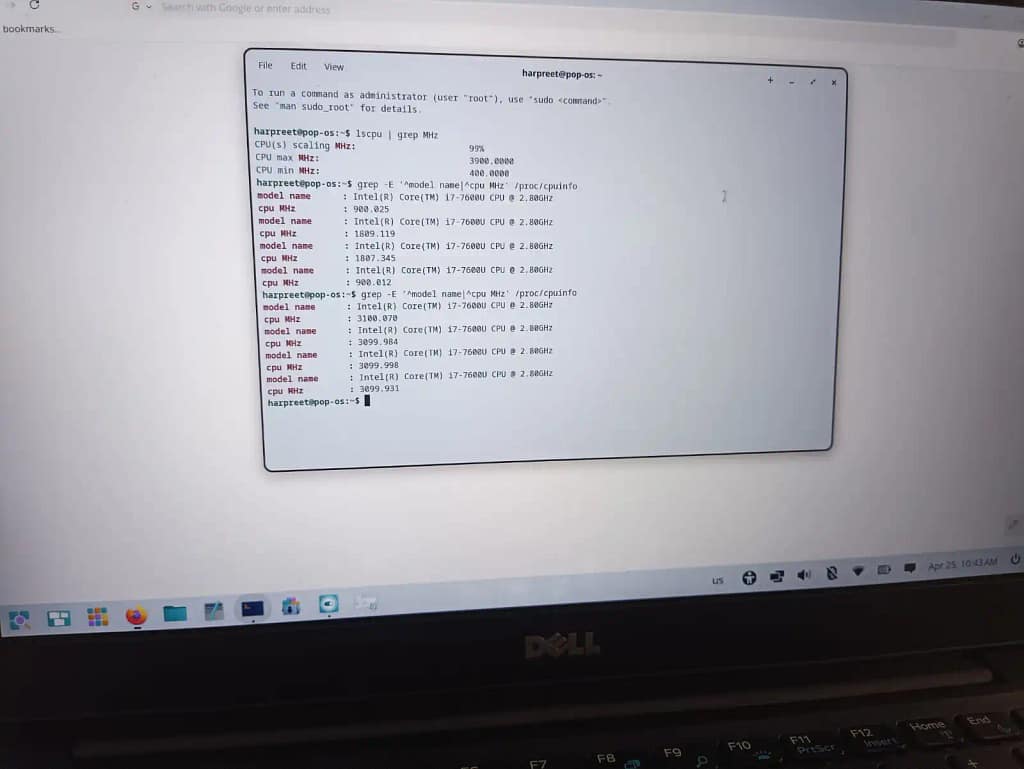
My experience on the OS was similar to what I felt during my last time here. I found it to be a modern, aesthetically pleasing OS, but way too futuristic for my liking.
That takes up a considerable amount of real estate on your laptop, which troubles you more if the screen size is small. And, with my new second Latitude 7280 screen size at around 12.5 inches, I did fall in the same category. However, after a day or so, I began getting new issues. At times, when I started my device, I would be greeted with the Pop OS logo, and nothing would go ahead from there. I had to restart my device around 3 times on most occasions before I found myself in.
Being fed up with these issues, I went back to Linux Mint Cinnamon. The experience, unlike my last time, was super smooth. After a few days, I began feeling uneasy with the small laptop screen and thought of connecting an external monitor to it. The connection worked well, and I even configured the device to “Do Nothing” on closing the lid. (This option can be found by going to Control Center-Hardware-On A/C Power and Battery).
I used the external monitor to “Mirror” my laptop screen, but when I closed my laptop lid, the screen resolution and the overall look would go crazy. Since I didn’t want to keep the laptop lid closed, I shifted to Ubuntu 26.04, hoping the experience there would be seamless.
Switching to Ubuntu 26.04 “Resolute Raccoon” for Convenience
When I installed Ubuntu 26.04 “Resolute Raccoon”, I expected things to work fluently, and it far exceeded my expectations. Let’s start with the issue I switched to this distro for. Unlike Linux Mint Cinnamon, where I configured the laptop to do nothing upon closing the lid, here are the commands I had to use in the terminal:
sudo nano /etc/systemd/logind.conf
HandleLidSwitch=ignore
sudo systemctl restart systemd-logind
If you’re curious what these commands do, the nano editor helps you reach the logind.conf file, which is how Ubuntu handles physical buttons and switches. In that file, you set the HandleLidSwitch line to ignore, so nothing happens when you close the lid. However, Linux might not always see file changes immediately. So, you restart the login manager to ensure the changes take effect, without a full reboot.
It’s advisable to save your work before executing these commands, as Ubuntu might force-close your current session, and you might have to log in again.
When I connected an external monitor to my laptop, used the “Mirror” option and closed the lid, Ubuntu automatically picked up the right resolution for my screen. This is thanks to GNOME’s intelligent display handling, which manages HiDPI scaling and Monitor Hotplugging seamlessly. Once the settings were applied, the viewing experience on the external monitor was great.
On top of that, Ubuntu allows fractional scaling. So, if, like me, you found the look at 100% a bit strange, you can switch to 125% or other options.
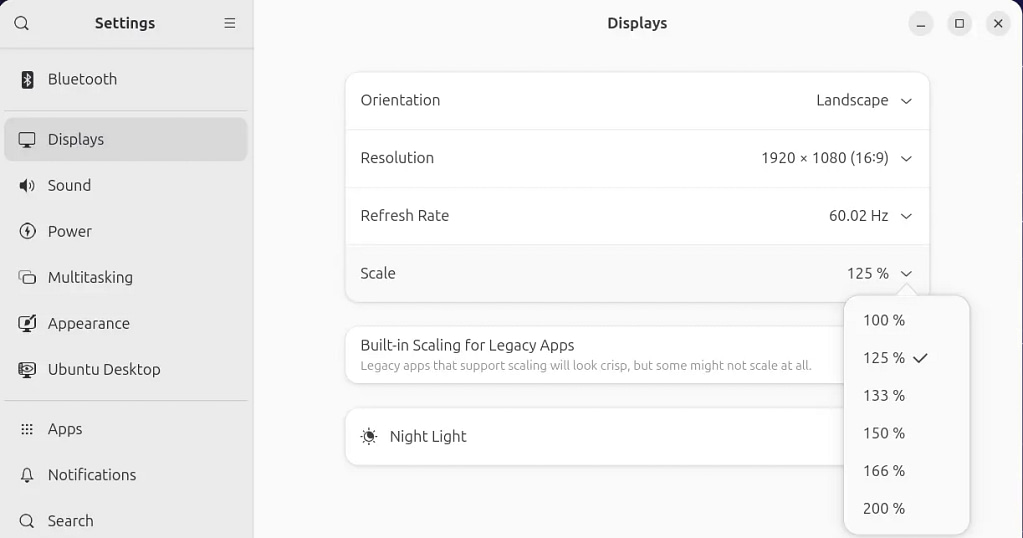
I often believe that Ubuntu is one of the best distros if your main priority is convenience. Here are my two observations that support my belief.
Updating firmware is seamless on Ubuntu. Mostly, you will get a notification that the firmware can be upgraded from one version to another. All you have to do is click install, put the laptop on charge, and sit back while it updates. On some distros, you will often have to make a bootable BIOS USB drive and update the BIOS through it. Thankfully, that’s not the case here.
Here’s another interesting observation. I took my motorbike to the service center yesterday, and when I connected to the facility’s Wi-Fi, it automatically added the office printer too. I remember working in a company where I had to chase IT guys around to do the same. Meanwhile, Ubuntu is like, “Hey Buddy, I’ll just add this in case you need to use it”.
However, I would also like to point out that, as amazing and instinctive as it has been to me, I have encountered system-wide hangs multiple times. I believe my 8 GB RAM is choking under my workload. I am continuing with Ubuntu right now, but if I do switch to a different distro, I will update this piece.
The Takeaway: Picking Your Battles in the Linux World
I switched back to Linux as a random Windows update left me without an OS. With a new second-hand laptop, I picked Linux Mint Cinnamon for it. However, the 700 MHz CPU hard lock troubled me a lot, which was solved by going back to factory defaults. Pop OS’s boot time issues and Linux Mint Cinnamon’s display handling issue pushed me to Ubuntu, where my experience has been quite convenient.
At the same time, I would like to remind you that there’s no such thing as a perfect OS. You will always find some issue in whichever OS you pick. You can just make the best educated guess based on what’s high on your priority list. Mine were convenience and a terminal-free experience, so I picked Ubuntu, which has risen up to the occasion most times.
Leave a Reply